
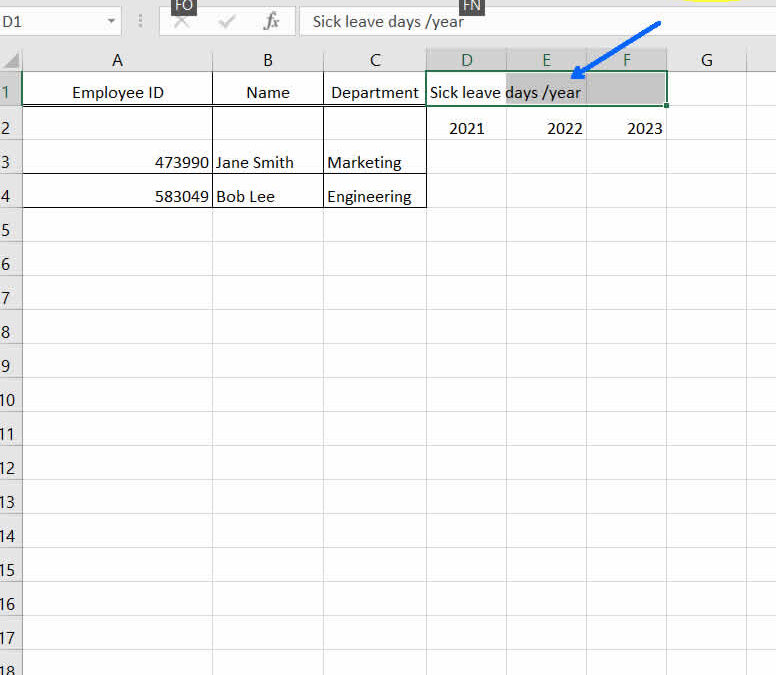
Merge and Center Shortcut in Excel
If you work as a data analyst or marketing specialist, you may already know how time consuming formatting tables and reports can be. Keyboard shortcuts are more than welcome, as they can save you lots of time on repetitive formatting tasks. The Merge and Center...
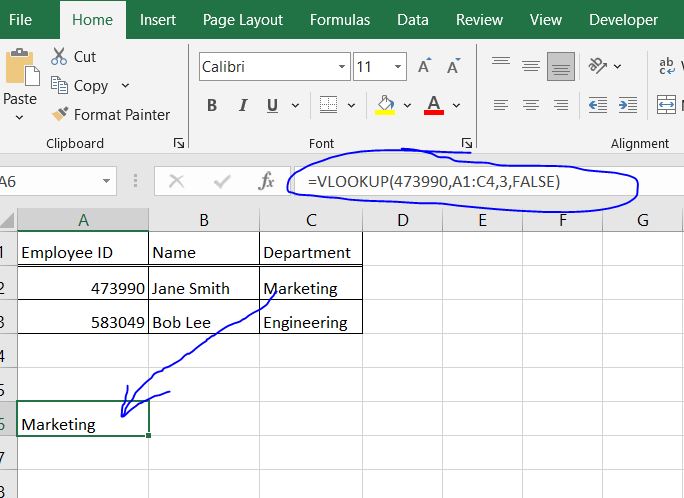
How to Use IF ISNA and VLOOKUP in Excel: A Step-by-Step Guide
More than once my work colleagues got irritated by seeing the dreaded #NA or #N/A text breaking their beautiful tables and worksheets. Younger ones didn't even know that the #NA acronym stands for, so I had to explain it time and again. What If We Could Replace #NA...

Paragraphs to Him
Finding the perfect words to express your love and make your partner feel special can be challenging. Whether it's through sweet good morning texts, reminiscing on memories, or gushing about how he makes you feel, the paragraphs you craft for him can melt his heart...
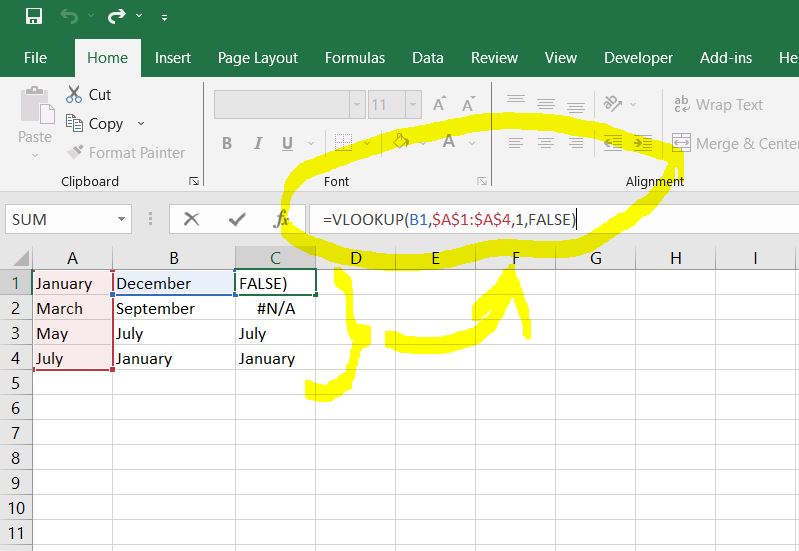
How To Compare Two Columns in Excel using VLOOKUP
Comparing and matching data between two columns is a common task in Excel. For example, you may have one list of customer names and another list of email addresses, and you need to identify which emails match to each customer. Or you might have two sheets with product...
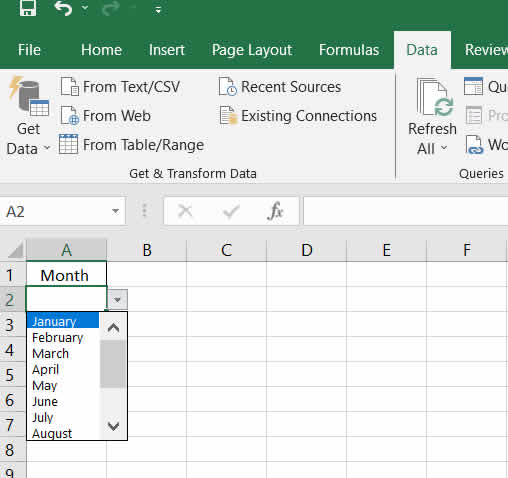
Limit Choices in a Cell To Restrict Data Entry in Excel
More often than not Excel users are prone to entering typos and other misspellings into cells, making a mess out of a database or table. The best way to prevent such errors is to limit choices in a cell to restrict data entry to a set of desired values. This article...
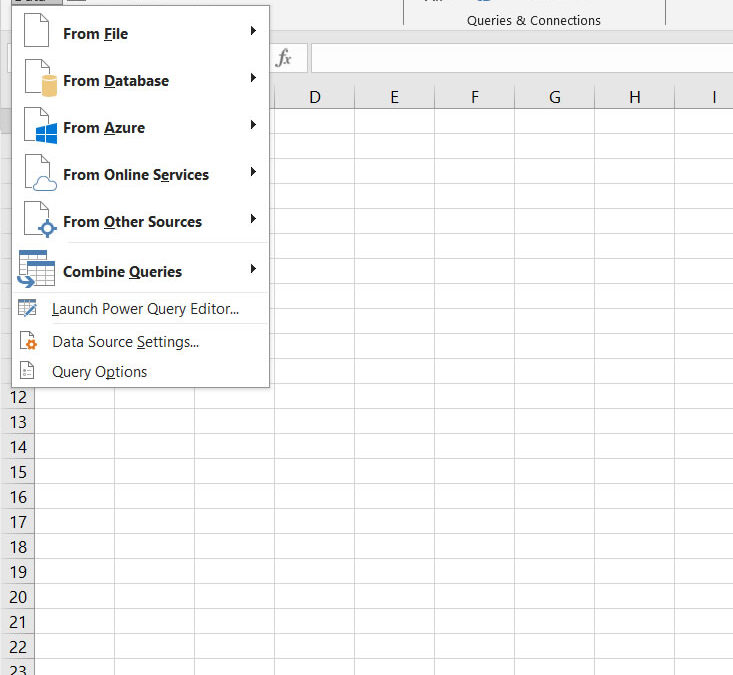
How To Reduce Excel File Size
Why would anyone want to reduce Excel file size or to compress such files? Main Reasons To Reduce Excel File Size There are multiple reasons for wanting to reduce Excel file size outcomes. Here are a few of them. I'm sure you can find others, if you think harder....
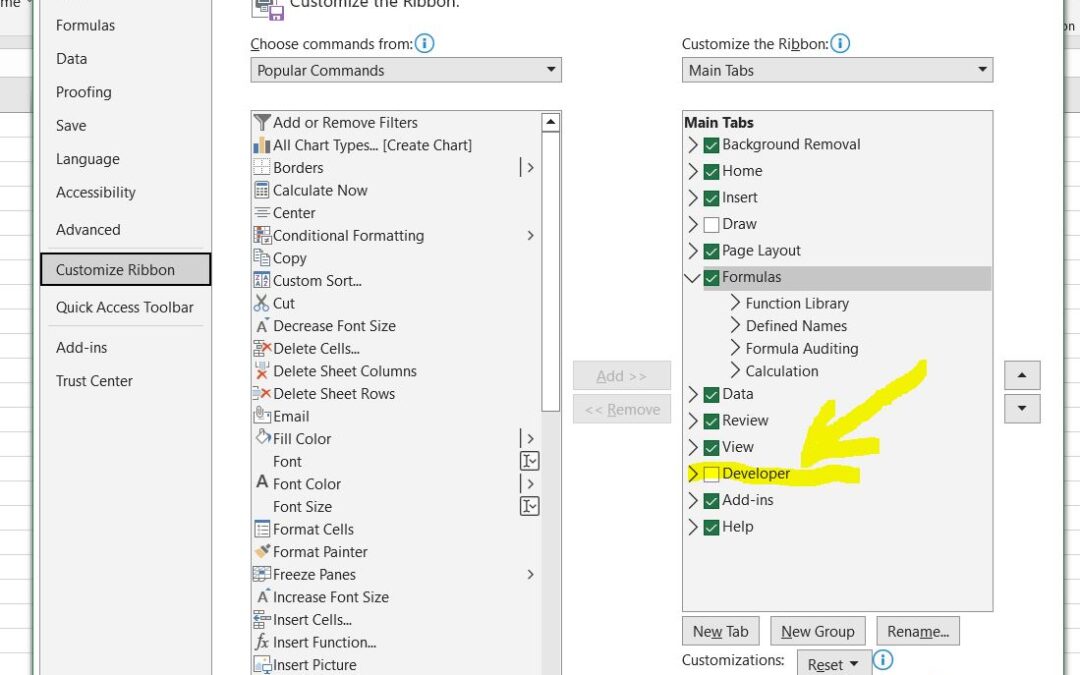
Excel Macros: A Beginner’s Guide
If you're a Microsoft Excel user, you probably know how much time repetitive tasks take. The good news is that you can speed up your work by recording and customizing macros. When it comes to Excel macros, sky is the limit. Just get creative and put your ideas into...

Cats Can Lough Out Loud Sometimes
Spottie, Tiger and their mom welcome you to this edition of 1001 Cats Blog Carnival. They worked hard to prepare for you some hopefully funny lolcats, so you get to know them better. But first, the serious stuff: Tiffany Holley presents Kitten Rescue posted at Life on...
Technology
Merge and Center Shortcut in Excel
If you work as a data analyst or marketing specialist, you may already know how time consuming formatting tables and reports can be. Keyboard shortcuts are more than welcome, as they can save you lots of time on repetitive formatting tasks. The Merge and Center...
How to Use IF ISNA and VLOOKUP in Excel: A Step-by-Step Guide
More than once my work colleagues got irritated by seeing the dreaded #NA or #N/A text breaking their beautiful tables and worksheets. Younger ones didn't even know that the #NA acronym stands for, so I had to explain it time and again. What If We Could Replace #NA...
How To Compare Two Columns in Excel using VLOOKUP
Comparing and matching data between two columns is a common task in Excel. For example, you may have one list of customer names and another list of email addresses, and you need to identify which emails match to each customer. Or you might have two sheets with product...
Limit Choices in a Cell To Restrict Data Entry in Excel
More often than not Excel users are prone to entering typos and other misspellings into cells, making a mess out of a database or table. The best way to prevent such errors is to limit choices in a cell to restrict data entry to a set of desired values. This article...
How To Reduce Excel File Size
Why would anyone want to reduce Excel file size or to compress such files? Main Reasons To Reduce Excel File Size There are multiple reasons for wanting to reduce Excel file size outcomes. Here are a few of them. I'm sure you can find others, if you think harder....
Life
Paragraphs to Him
Finding the perfect words to express your love and make your partner feel special can be challenging. Whether it's through sweet good morning texts, reminiscing on memories, or gushing about how he makes you feel, the paragraphs you craft for him can melt his heart...

Learn & Master Photography with Vince Wallace, Special Offer
Disclosure: This article contains affiliate links. This means that if you click on such a link, I am compensated with a commission in case you decide to buy something from the vendor's website. My website is independently owned and the opinions expressed here are my...

How to Convert Old Photos and Negatives to Digital: Three Ideas
While doing research for this article, I found GoPhoto, a service that scans your old photos, negatives and slides and helps you put them online, for only $0.28 per scan. GoPhoto is based in San Francisco area, but they provide services across the entire US. Digital...

Can One Quit Alcohol or Drugs Without Help?
I know people who quit smoking without any treatment or counseling. I also know people who quit several times, but started again in a while. It seems the trigger for the return of their addiction was some unhappy event or a stressful situation. I wonder if any of you...

Gaddafi Halloween Costume: Would You Wear One This Halloween?
Some Halloween costumes sell much more than others. Best sellers can be related to anything. Sometimes, an extremely addictive computer or iPhone game can make a costume sell like crazy. This is what's happening right now with the Angry Birds Costumes and with the...

Christmas Gift Idea For Your Children
Browsing the campaigns in shareasale.com and NeverblueAds, I discovered a cool Christmas gift idea for children within 3 and 10 years of age: a photo personalized DVD movie, in which your child's photo will appear more than 30 times. If you order it before December...
Who’s Your Gums’ Best Friend? Philips Sonicare FlexCare Plus Electric Toothbrush Review
I love my teeth. I love my gums, too, because they hold my teeth. I don't want to lose my teeth. None of the people I know does, actually. There was a time when I almost had the feeling that I was brushing my teeth with a blade, that's how bad my gums were bleeding....
The 7 Wonders Of Working From Home
Wonder 1: I wonder why people associate working from home with being always available for them? Wonder 2: I wonder why people see working from home as a good pretext for lazyness? Wonder 3: I wonder why that sink is always full of dishes, although I wash them many...
Home & Garden

How to Choose Which Fridge Freezer to Buy
Your refrigerator has been making peculiar noises for a while, and you suspect it's on its last legs. You know you'll have to buy another one but you're not sure which type to choose. There is a vast array of brands and styles to look at, and it's best to have a...
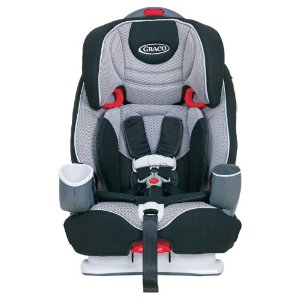
How To Choose a Toddler Car Seat. Graco Nautilus 3-in-1 Car Seats Have Good Reviews
One of my best friends wants to buy a car seat for her little daughter. She came to me to ask for help, so we did the research together. We spent last evening looking at various models and we came up with a list of points one needs to check when buying a car seat for...
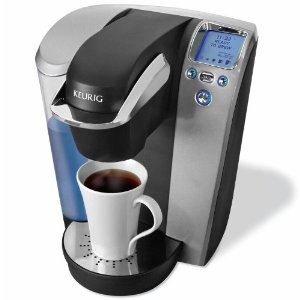
Good Coffee Makes Great Mornings. Looking to Buy a Keurig B70 Platinum Coffee Maker
How many appliances can one buy during a lifetime? I can buy lots! There’s always something I need more than what I already have. Like coffee makers: I’ve got one, but it makes lousy coffee. I can’t stop myself wishing to buy a better coffee machine. At my last job,...
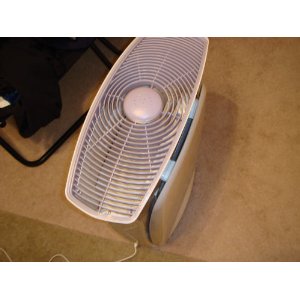
3M Filtrete Ultra Clean Air Purifier Claims To Be Better Than HEPA. Amazon reviews suggest it might.
Air purifiers have different effectiveness levels. There is a standard which measures this. It is called CADR and it stands for Clean Air Delivery Rate. It indicates the volume of filtered air delivered by the air cleaner per time unit, adjusted with the particle...
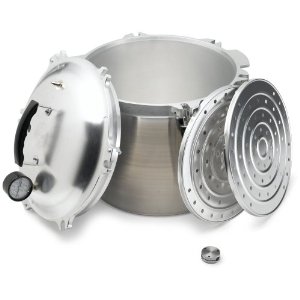
Did You Know You Can Use a Pressure Cooker for Canning? All American 921 Pressure Cooker / Canner Review
I love my pressure cooker. It helps me spend less time cooking, because foods boil so much faster in it. I have one of those basic stainless steel pressure cookers, without any bells and whistles such steam gauges or multiple pressure settings. Even so, I'm very happy...
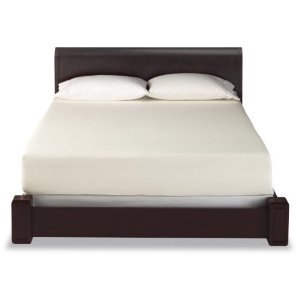
Insomnia Makes Me Read Memory Foam Mattress Reviews at 3am
The advantage of insomnia is that you have a lot of time for thinking. The disadvantage is that you can't direct your mind to enjoyable thoughts only. I discovered that thinking about practical things helps keeping unwanted thoughts away. Last night was one of those...

Telescopic Ladders, Ideal For Small Spaces. Werner MT-22 Multi-Ladder Review
Each time I paint my walls, I wish I had a ladder. I never get to buy it, though. I use the kitchen table, which I drag around to do the ceiling and the upper part of the walls. It's usually fine, but moving from one room to the other is a bit of a hassle, because the...
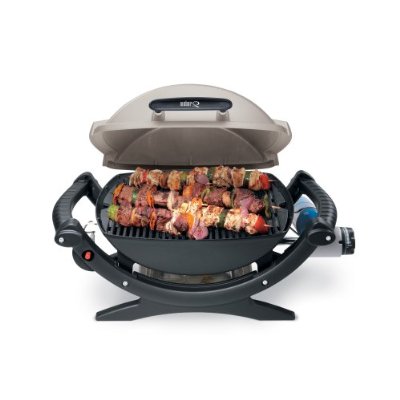
Portable Propane Gas Grills: Weber 386002 Q 100 BBQ Grill Review
Before starting this research for buying a food smoker, my idea of barbecue grills was simple: a solid grate over a metal box filled with coal, set on two bricks in the backyard. Now that I'm into barbecue smokers and I already love Weber Smokey Mountain Cookers, I...