
Last Updated on April 20, 2020
If you use your laptop with an external monitor and you make that monitor primary, you always need to remember switching the settings back to the initial ones before disconnecting that monitor. If you forget, you’re in trouble, because the Display Properties window doesn’t show on your screen, so you can’t access the display settings (I’m talking here about Windows-operated computers). This is very tricky, because the Display Properties box doesn’t show in the taskbar, so you have no chance to use any menus that may show up when you right-click that tab.
This is what you need to do for bringing your off-screen window back on screen:
- Right click anywhere on the desktop (on the free space, not on icons). The following menu will appear:
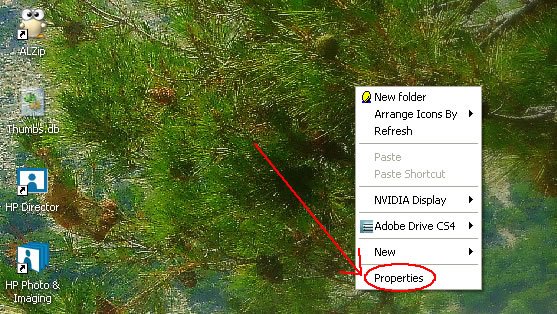
- Left click on Properties (last item on the menu that will show up after your previous command)
- Press F10 on the keyboard (this will move the current cursor position on the Display Properties window which you can’t see yet)
- Press Down Arrow on the keyboard (this will activate the following menu, which you also can’t see, but I’ll show it to you here, so you realize what I’m talking about)
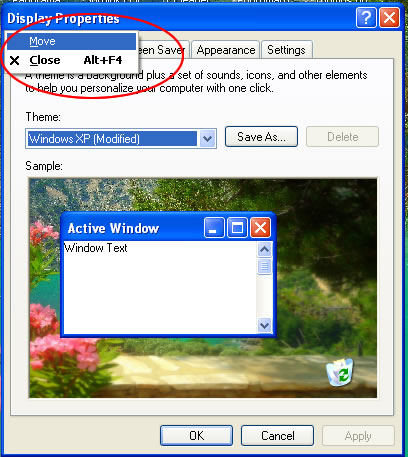 (Notice that the current cursor position is already on the Move item)
- Press Enter. The Move command is now selected (but you also can’t see because the box is positioned off-screen)
- Press either left arrow or right arrow on the keyboard.
- After pressing any of the arrows once, just start moving the mouse left or right, until you see the Display Properties box on the screen.
- When you’re happy with the new positioning of the box, left-click once and you’re done, you can now make your laptop screen primary again and thank me for saving you from disaster.



Thanks for the warning. I just got a new monitor, and this wasn’t something I was thinking about.
Cool tip. Thanks a million for that! We don’t have an external monitor, but are thinking of getting one to make life easier.
Cool Brands of Britain
Great tip! or is it a trick? 😉
I’ve been stuck in this situation before and ended up plugging my 2nd monitor back in just to get everything back!
If you can see the taskbar then right clicking the tab for the application that is lost and choosing ‘move’ option, then pressing the arrow keys, worked for me – but your great guide saves the day if no taskbar is in site!
Thanks
Too many web ‘sites’… I meant sight!
This is really cool. I felt stupid after reading this because just not like what happened with Lachlan who still had a brilliant idea of having another monitor plugged in, I simply started my work from the top! Thanks because that will surely never happen again…
🙂 Lachlan, your tips (or tricks 😉 ) are a very nice addition to my article, thank you for taking the time to comment.
Margaret, I know that feeling when something is so simple that it should have been obvious, yet we take the complicated way.
Hey…Thanks for that information.
Cool tip. Thanks a million for that! We don’t have an external monitor, but are thinking of getting one to make life easier.
You are welcome. Dual monitors are just great, you’ll see the advantages in no time.
Hey Thanks for this wonderful tips. . I t was really helpful and I was searching for a solution
Wow awesome tip! now i am going to get a new monitor.
Thank you! Thank you! Thank you!
I was about to pull out my hair out in exasperation over this problem. Your solution worked perfectly.
You are welcome! I’m glad I helped you 🙂