
Last Updated on April 20, 2020
You love photography. You could drive for hours, you could wake up at 5 o’clock in the morning, you could walk through swamps, only for the sake of taking a great landscape photo.
What if your best shots are spoiled by those ugly electric cables which seem to be everywhere? What if naughty tourists move unpredictably, spoiling your so long prepared picture?
There are remedies for removing unwanted items from your photos. One of them is a tool called Clone Stamp, which is built in many photo editors. I’m showing you now how it works in Adobe Fireworks, but the process is similar for all photo editors which include the function.
This is the initial photo:

I’m bothered by the electric wire in the upper left corner and by those people gathering the rubbish. I’ll show you now how to get rid of the wire with the clone stamp tool (or Rubber Stamp Tool).
1. From the Tools floating menu, select Rubber Stamp Tool (see the arrow on the next picture).
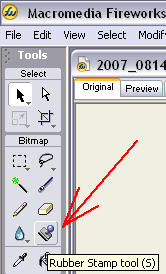
2. On your photo, click on the sky, close to the wire we want to get rid of.
3. Now move the cursor horizontally and click on the wire. You’ll see a small section of the wire disappearing. Click again, a bit higher, and again. You’ll see that the tool copies the sky pattern corresponding to the first click, over the wire (see the area marked with red in the next photo):

4. Repeat the operation for the entire wire. You can choose whatever pattern you like from the clouds, in such a way that it matches the neighbouring clouds. This is the final result:

5. If you are not satisfied with the result, you can apply a blur to that former-wire area. I liked my result, so I didn’t feel the need to do this.
Did you know this tip? What do you currently use to get rid of annoying objects from your photos?



This is definitely useful! 🙂
But what about removing things that do not quite blend in with the background, especially if it involves removing “people”?
If your target is not mobile and the people are moving, you can use a neutral density dark filter which allows you to increase exposure during daytime so much, that moving items are not appearing in the photo. You’ll need a tripod to take the picture.
If you already have the photos and you want to use only software, as far as I know, clone stamp is the best tool. However, you need to have some background to clone (I could remove those people in my photo, but it would take me much longer than to eliminate the wire).
Does the Rubber Stamp tool lets you copy or clone one area of an image to another?
Yes, but you need to do a trick: both images need to be in the same file. You just enlarge the canvas, so it is enough room for both photos, then you do the cloning, and in the end you remove the picture you don’t need anymore (use crop, or other similar command).
Ok i have a picture and it has a extra item covering someting important
Hey Jonathan,
If that something that’s important is not a part of a background that you can clone, then you’ll need to have a separate photo of it and use it for restoring the covered part in your photo. Clone Stamp is excellent for backgrounds, but in cases like yours it may not be the best option.
It was a great tip I tried it out and very useful . .
Thanks For the post
Great post! Thank you!!!
Hi,
you can also use our software called Photoupz for automatically removing unwanted items in photos.
wow … nice violeta i did not use before fireworks but now i will try to use
nice sharing
Clone stamp is the best tool. However, you need to have some background to clone (I could remove those people in my photo, but it would take me much longer than to eliminate the wire).
Nice tutorial, but for removing unwanted objects from photos I am using Inpaint
http://www.theinpaint.com
And I want to say, it is amazing!